Build an Interactive Magazine Without a PDF: Introducing Flipable Studio
Flipable Studio lets you build a magazine from ready-made templates and add video, hotspots, galleries and 3D, then publish it as a normal Flipable catalog. Here is how it works.
Este artículo aún no está traducido al español: estás leyendo la versión en inglés. Leer en inglés
Most digital magazines start life as a PDF. Someone designs the issue in a layout program, exports it, and only then thinks about what should move, play or open on screen. Flipable has always been good at the second half of that job: you upload the PDF, we turn it into a flipbook, and the interactive editor lets you add links, videos and pop-ups on top.
Flipable Studio removes the first half. You build the magazine inside Flipable, page by page, from templates. When you publish, it becomes a normal Flipable catalog with the same reader, search, analytics and embed code as any other.
This post walks through it using APEX, a 12-page demo issue about new cars that we built in Studio.
Start with a size and a set of pages
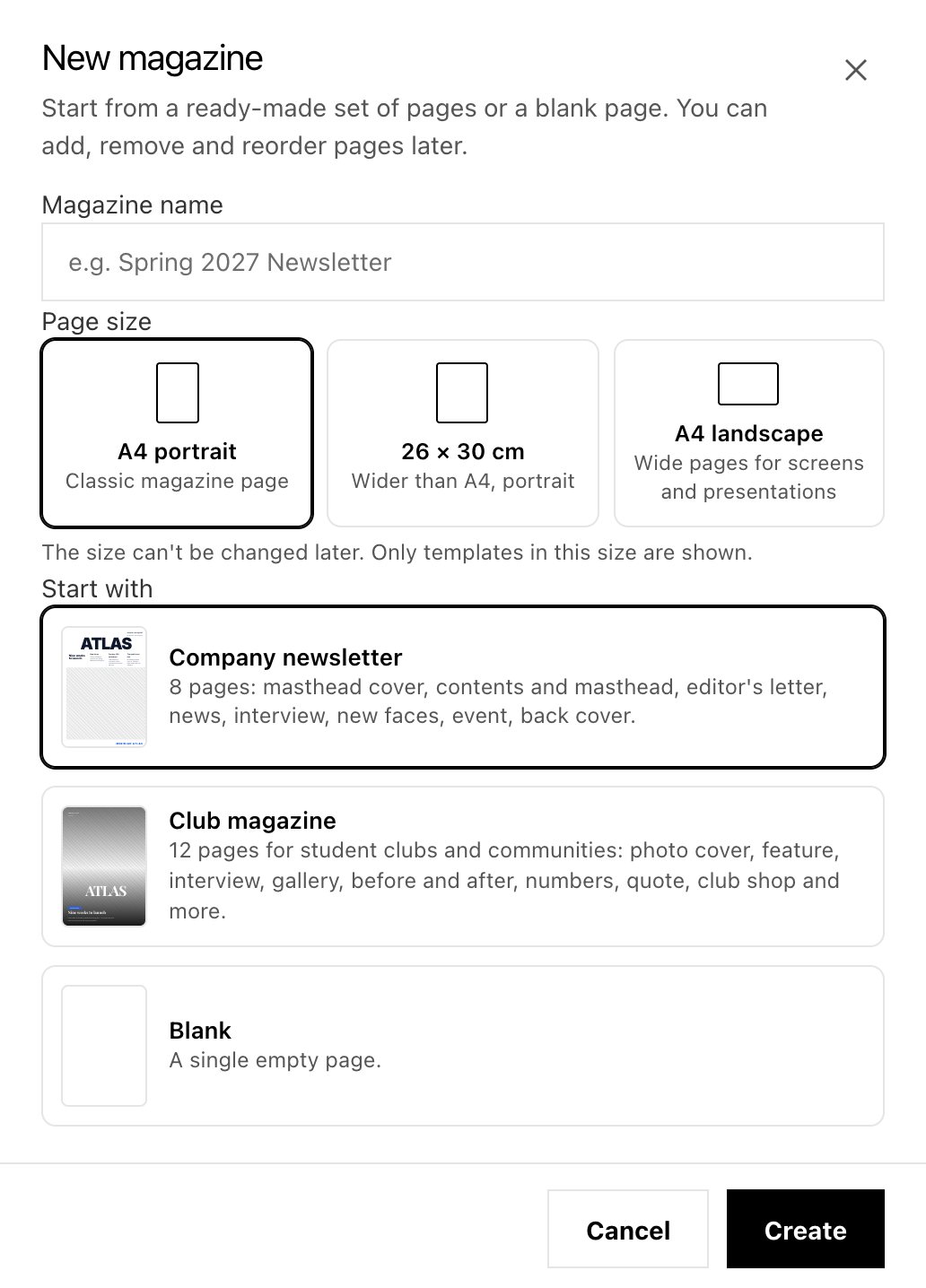
Pick the page size first. It can't be changed later, and the template picker only shows templates in that size.
A new magazine asks for two things. The first is the page size: A4 portrait, a slightly wider 26 × 30 cm portrait page, or A4 landscape for screens and presentations. The second is where to start: a company newsletter (8 pages), a club magazine (12 pages) or a single blank page.
The size is fixed once the magazine exists. That sounds strict, but it keeps every template, image crop and text box designed for the shape you chose, instead of stretched to fit.
The editor
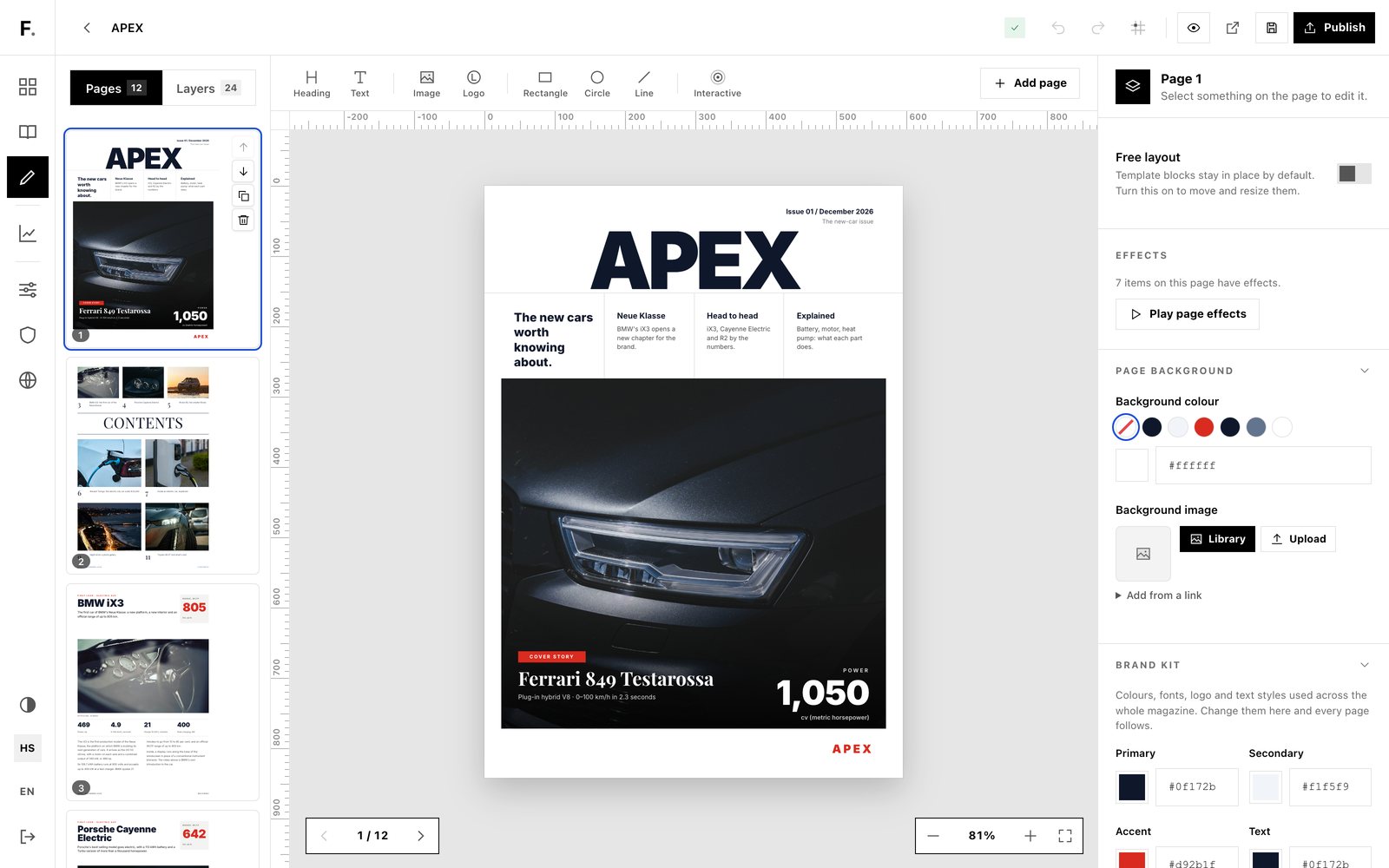
Pages on the left, the page in the middle, settings for whatever you selected on the right.
The editor has three columns. On the left are your pages: drag them to reorder, or use the small buttons to move, duplicate or delete a page. In the middle is the page itself. Click any text to edit it, or double-click to type straight onto the page. On the right are the settings for whatever is selected. With nothing selected, that panel shows the page background and the brand kit.
The brand kit holds the colours, fonts, logo and text styles for the whole magazine. Change the accent colour once and every page that uses it follows. Edit the "Title" style and every heading linked to it updates. Studio ships with 16 open-licence font families, served from our own servers, so readers' browsers never call a third-party font service.
Images come from your workspace's media library. Upload JPEG, PNG, WebP or GIF files; Studio resizes them for the screen and strips location and camera data before storing them.
Templates that look like a magazine
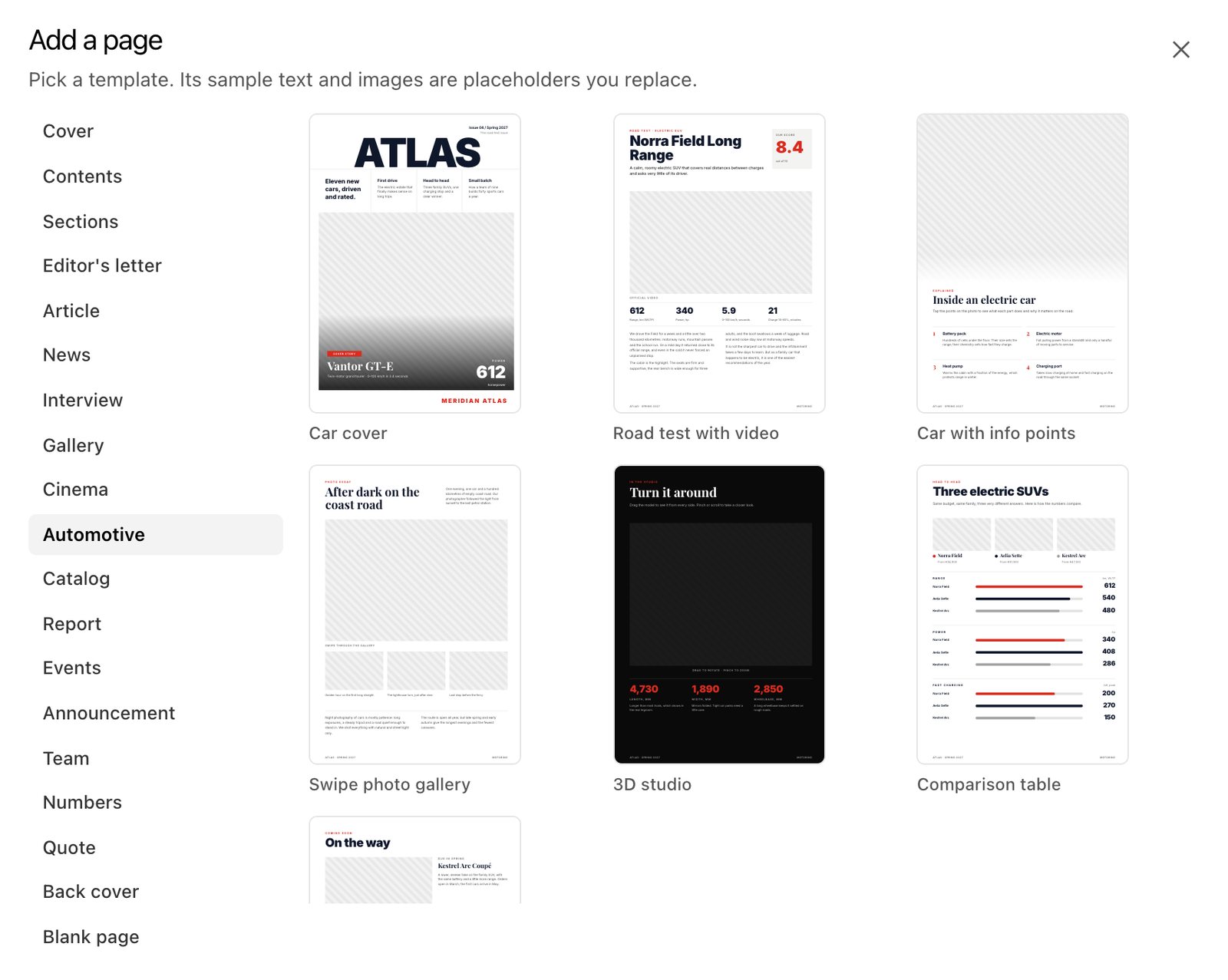
Every template comes in all three page sizes. The sample text and grey image areas are placeholders you replace.
"Add page" opens the template picker: 52 templates in 18 categories, from covers and contents pages to interviews, galleries, team pages, reports and back covers. Some categories are built around a subject: Cinema has pages with trailers and rating counters, and Automotive has a road test with video, a car with info points, a comparison table and a 3D studio page.
The templates were measured from real magazine layouts rather than generated, so the spacing, type sizes and image proportions behave like a printed page. Sample text exists in all 12 interface languages, and a new magazine starts in the language you are using Flipable in.
Template blocks stay where the design put them. If you want to move or resize them, turn on "Free layout" for that page.
Interactive elements
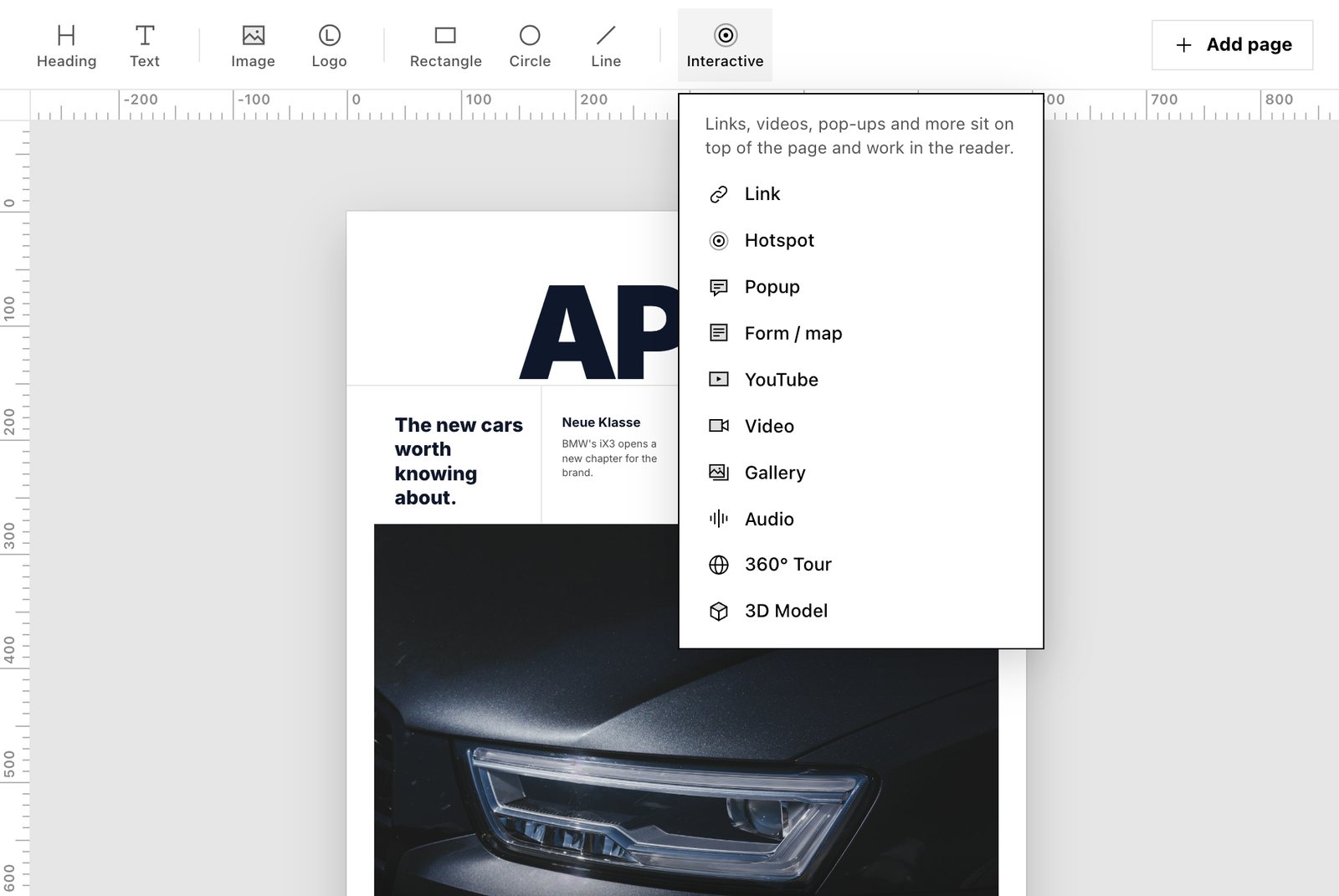
Interactive elements sit on top of the page and work in the reader.
This is where a Studio magazine differs from a static one. The "Interactive" menu adds elements that sit on a layer above the page:
- Links to a website, a WhatsApp chat or another page in the magazine
- Hotspots that open a pop-up with a title, text, image and button
- YouTube and video, including videos fitted into a screen in a photo
- Galleries readers swipe through
- Forms and maps from Google Forms, Typeform, Jotform, Tally, Microsoft Forms, Calendly or Google Maps
- Audio, 360° tours and 3D models
Here is what a hotspot page looks like to a reader:
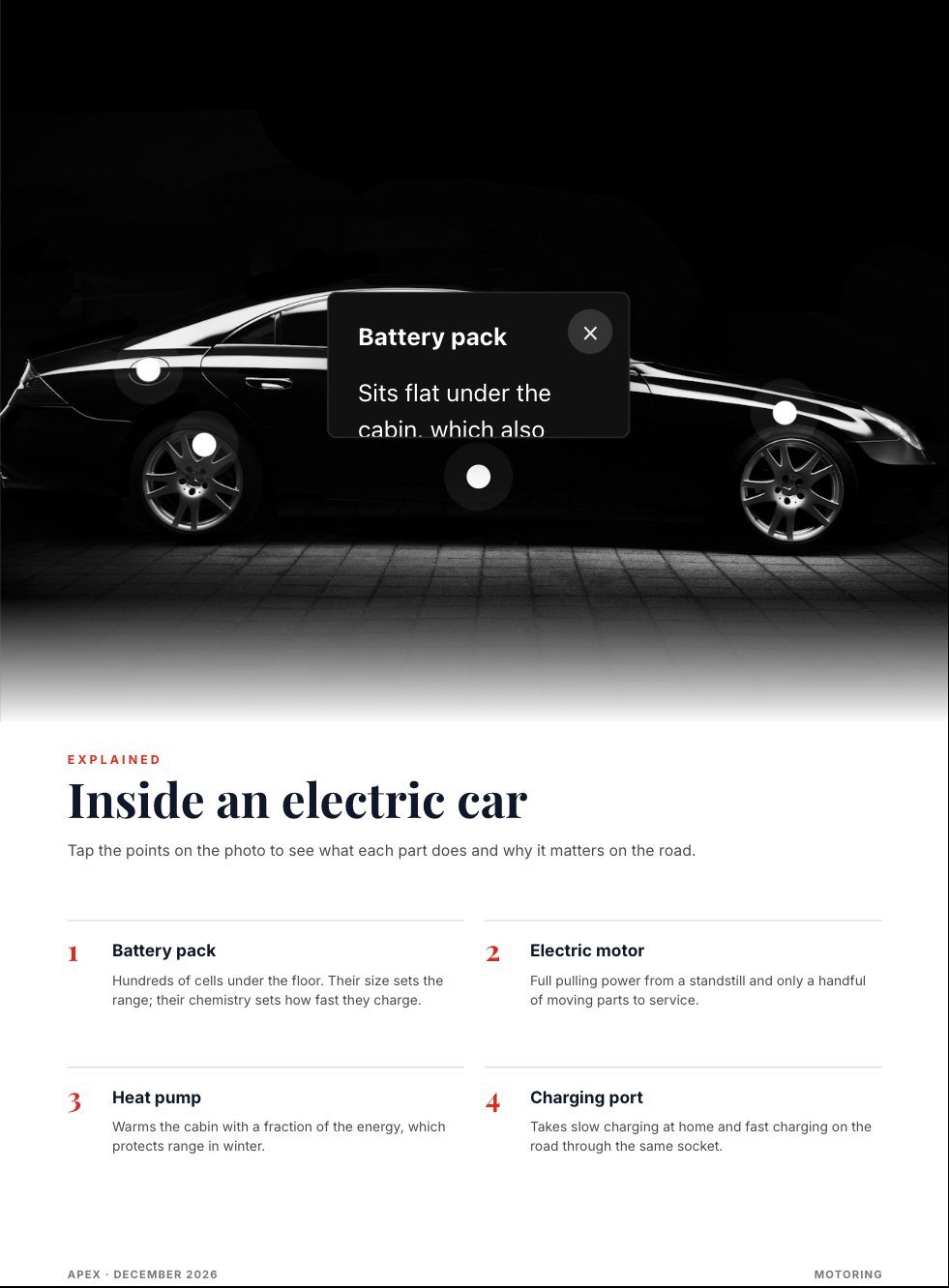
Readers tap the points on the photo; each one opens a short explanation.
And the 3D page, which loads a model readers can turn with a finger or a mouse:
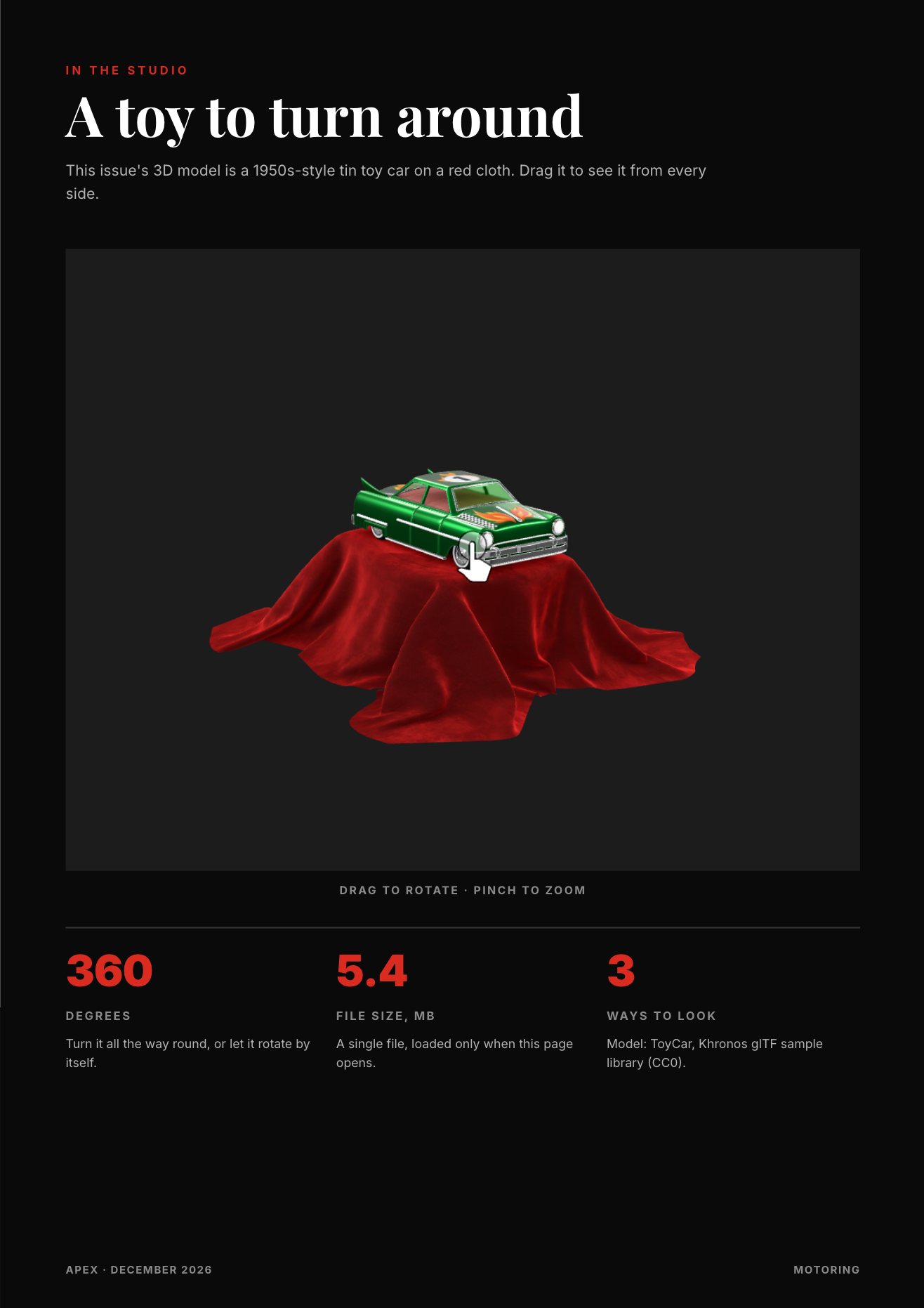
The model loads only when the page opens. This one is a CC0 sample from the Khronos glTF library.
Effects that make a page feel alive
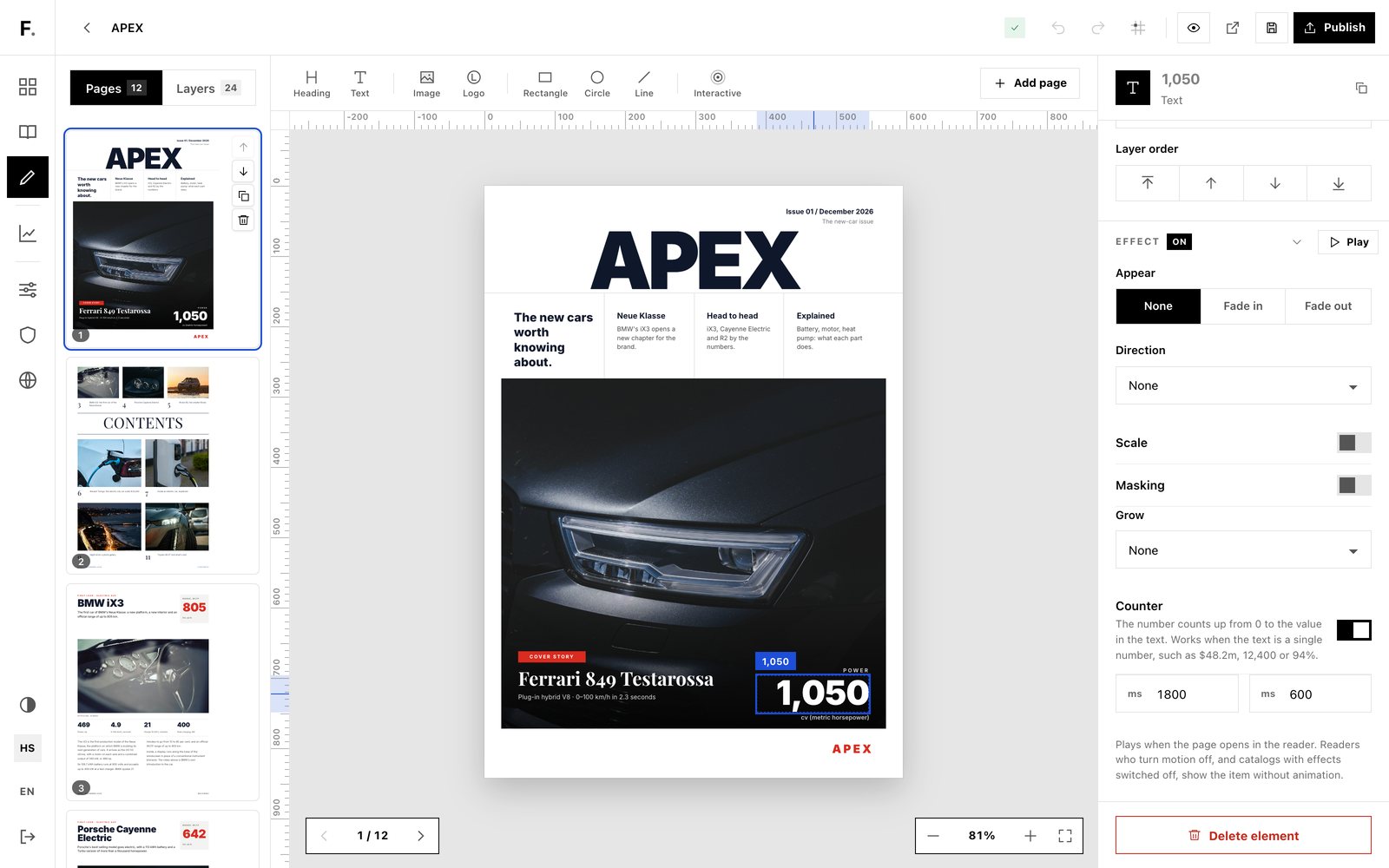
The horsepower figure on the APEX cover counts up from zero when the page opens.
Any block can fade in or fade out, slide from a direction, scale, or reveal itself inside its frame. Two effects are built for data. Counter makes a number count up from zero to its value, and it understands formats like $48.2m, 12,400 or 94%. Grow draws a bar from one side to its full length, which is how the comparison table fills its bars one after another.
You can also group blocks, such as a heading with its text, and give the group a staggered effect so the items appear one after another.
Effects play when a page opens in the reader. Readers who have turned motion off on their device, and catalogs where you switch effects off, show everything without animation. Hover effects, like a photo turning from black and white to colour, only appear for readers using a mouse.
Check it before anyone else sees it
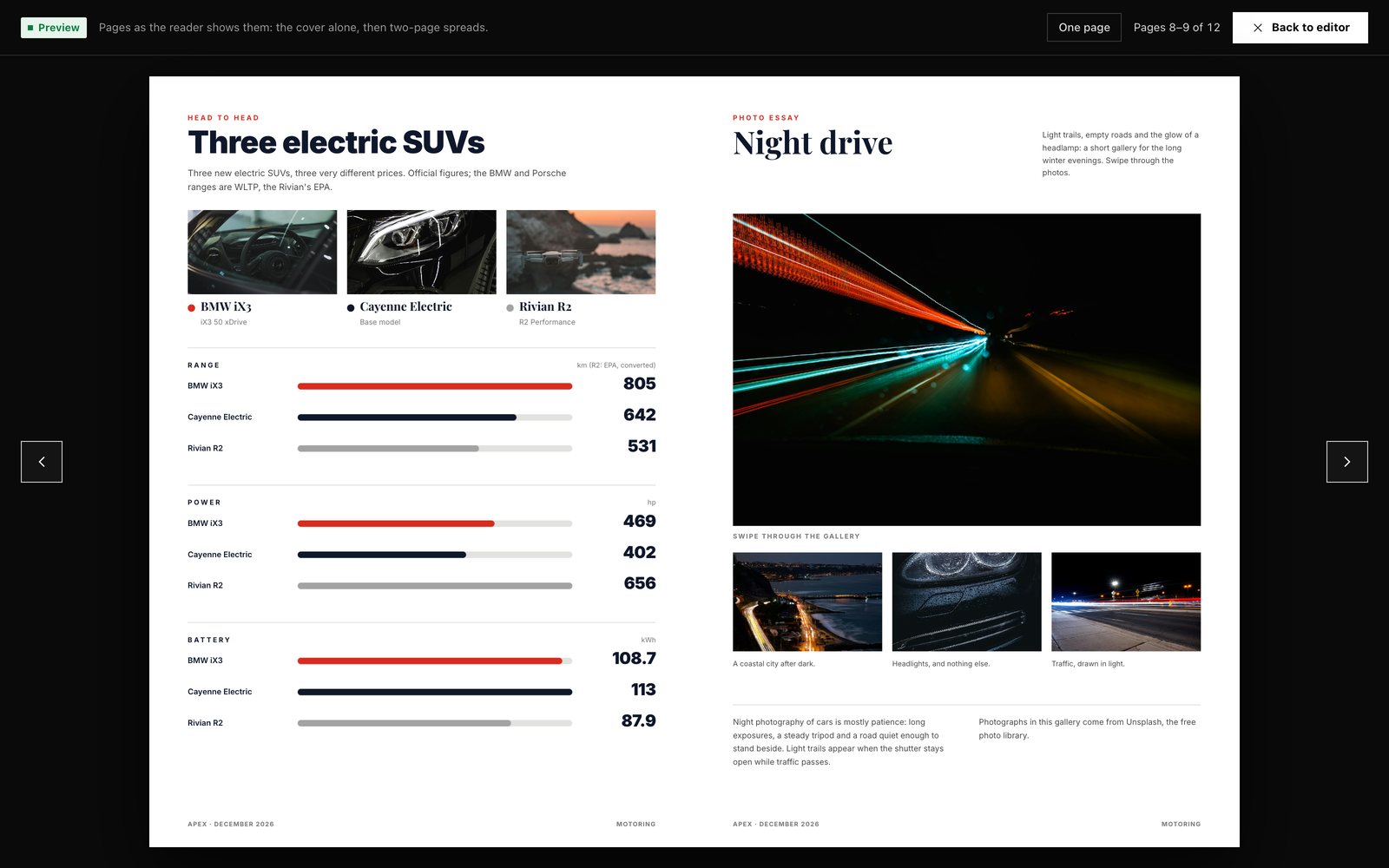
Preview shows the pages the way the reader lays them out: the cover alone, then two-page spreads.
"Preview" shows the magazine inside the editor, with the cover on its own and the rest as two-page spreads, the way the reader shows them. "Preview in reader" goes one step further: it opens the saved magazine in the real Flipable reader in a new tab, with every video, hotspot and 3D model working, without publishing anything.
Publish
"Publish" turns the magazine into a regular Flipable catalog. That means it gets everything a catalog has:
- a short link and a QR code,
- public, link-only or private visibility,
- the embed code for your own website,
- search across the text, a table of contents and reading mode,
- the same analytics as your PDF catalogs, including which interactive elements readers used.
Republishing updates the same catalog at the same address, so links and printed QR codes keep working. When the next issue is due, "New issue" copies the magazine, design and brand kit included, so you only replace the content.
Plans and limits
Studio magazines have their own allowance, separate from your PDF catalogs, and a published magazine does not use up a PDF catalog slot.
- Free: one magazine, up to 12 pages.
- Paid plans: as many magazines as your plan has catalogs, up to 100 pages each.
Interactive elements follow the same rule as the interactive editor for PDF catalogs: you can add them and try them with "Preview in reader" on any plan, and publishing them to readers is part of the Business plan or a 30-day trial. On other plans, the magazine's pages are published without the interactive layer.
Archiving a magazine you no longer work on frees its slot. Archiving never deletes the files or the published catalog.
What Studio doesn't do (yet)
- There is no PDF or HTML export. A Studio magazine lives as a Flipable catalog.
- The page size can't be changed after the magazine is created.
- Forms and maps only come from the providers listed above.
If you already design in another tool and export a PDF, the PDF route and the interactive editor still work exactly as before. Studio is for teams that would rather build the magazine where it will be read.
The APEX demo uses general car photography from Unsplash. Figures in the demo come from manufacturers' announcements and press coverage.
Más artículos
- How to Make a Digital Magazine Interactive (Without Turning It Into a Website)Links, video, hotspots, pop-ups and galleries: what each one is for, where it belongs on the page, and how to tell afterwards whether readers actually used it.10 de noviembre de 2026 · 6 min de lectura
- How Many Visitors Does Your Catalog Send to Your Website?Your catalog report stops when a reader clicks through to your site, and your website analytics cannot tell which catalog they came from. A plain-language guide to UTM tags, and how Flipable adds them to your links automatically.3 de noviembre de 2026 · 5 min de lectura
¿Listo para publicar tu propio catálogo interactivo?